
字节笔记本
2026年6月10日
Text-to-Lottie:用 AI 生成 Lottie 动画的 Claude Code Skill
Text-to-Lottie 是一个开源的 Claude Code / Codex Skill,让你用自然语言描述动画,由 AI 生成标准 Lottie JSON,配合内置的 Skottie 播放器实时预览。生成的动画可直接用于 Web、iOS、Android、Flutter 等多端。
项目简介
Text-to-Lottie 由 diffusion.studio 开发维护,目前已在 GitHub 上获得 1.9k stars。项目使用 TypeScript 编写,核心渲染引擎基于 Skia 的 Skottie 模块(通过 CanvasKit WASM 在浏览器中运行),前端采用 React + shadcn/ui + Tailwind CSS 构建控制面板。
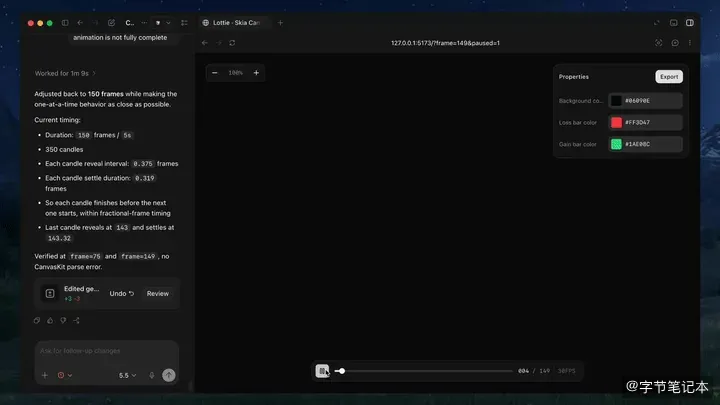
这个工具的核心理念很直接:Agent 写 JSON,Skottie 渲染,浏览器实时预览。写完 public/lottie.json 后 Vite 自动热重载,无需手动刷新。
核心特性
- 自然语言生成动画:用文本描述动画效果,LLM 按照 SKILL.md 规范生成标准 Lottie JSON
- Skottie 实时渲染:基于 Skia CanvasKit WASM,不依赖 lottie-web 的 JS 运行时,渲染效果更接近原生
- Figma 风格交互:播放器支持滚轮平移、Cmd+滚轮缩放、拖拽移动、双击重置
- Skottie Slots 实时编辑:颜色、数值、文本等属性可通过属性面板实时调整,无需重新解析
- URL 参数精确验证:通过
?frame=N&paused=1定位到特定帧截图,方便 Agent 自动化验证
技术栈
| 层 | 技术 |
|---|---|
| 渲染引擎 | Skia CanvasKit (Skottie) via WASM |
| 前端框架 | React 18 + TypeScript |
| UI 组件 | shadcn/ui + Tailwind CSS 4 |
| 构建工具 | Vite 6 |
| 动画格式 | Lottie JSON (Bodymovin) |
安装指南
作为 Skill 安装(推荐)
npx skills add diffusionstudio/lottie安装后直接对 Claude Code 或 Codex 说"生成一个动画",Agent 会按照 Skill 规范自动完成创作和验证。
手动搭建
npx degit diffusionstudio/lottie my-animation
cd my-animation
npm install
npm run dev
postinstall 脚本会自动将 CanvasKit WASM 文件复制到 public/ 目录。启动后打开终端输出的本地 URL 即可。
SKILL.md 规范(项目的灵魂)
这个项目最值得关注的是它的 SKILL.md 文件,一份写给 LLM 的 Lottie JSON 编写指南。它预判了 AI 写 Lottie 时的常见坑点:
Shape 元素必须包裹在 Group 中。Skottie 要求所有 shape primitives(椭圆、矩形、路径、填充、描边)放在 ty: "gr" 的 it 数组里,扁平写法会渲染为空白。
颜色使用 0-1 RGBA。不是 0-255,[1, 0, 0, 1] 才是不透明红色。
关键帧值始终是数组。标量如旋转也要写成 "s": [360],最后一帧通常不需要缓动参数。
必须包含背景色控制。强制要求一个全画幅矩形作为最底层,填充使用 slotted color。
// 最小可行的 Lottie 结构
{
  "v": "5.7.0",
  "fr": 60,
  "ip": 0,
  "op": 120,
  "w": 512,
  "h": 512,
  "assets": [],
  "slots": {
    "bgColor": { "p": { "a": 0, "k": [1, 1, 1, 1] } }
  },
  "layers": [
    {
      "ty": 4,
      "nm": "circle",
      "ip": 0,
      "op": 120,
      "st": 0,
      "ks": { "o": { "a": 0, "k": 100 }, "p": { "a": 0, "k": [256, 256, 0] }, "a": { "a": 0, "k": [0, 0, 0] }, "s": { "a": 0, "k": [100, 100, 100] }, "r": { "a": 0, "k": 0 } },
      "shapes": [{
        "ty": "gr",
        "it": [
          { "ty": "el", "p": { "a": 0, "k": [0, 0] }, "s": { "a": 0, "k": [120, 120] } },
          { "ty": "fl", "c": { "a": 0, "k": [0.2, 0.6, 1, 1] }, "o": { "a": 0, "k": 100 } },
          { "ty": "tr", "p": { "a": 0, "k": [0, 0] }, "a": { "a": 0, "k": [0, 0] }, "s": { "a": 0, "k": [100, 100] }, "r": { "a": 0, "k": 0 }, "o": { "a": 0, "k": 100 } }
        ]
      }]
    },
    // 背景层(放在最后,渲染在最底层)
    {
      "ty": 4,
      "nm": "background",
      "ip": 0, "op": 120, "st": 0,
      "ks": { "o": { "a": 0, "k": 100 }, "p": { "a": 0, "k": [256, 256, 0] }, "a": { "a": 0, "k": [0, 0, 0] }, "s": { "a": 0, "k": [100, 100, 100] }, "r": { "a": 0, "k": 0 } },
      "shapes": [{
        "ty": "gr",
        "it": [
          { "ty": "rc", "p": { "a": 0, "k": [256, 256] }, "s": { "a": 0, "k": [512, 512] }, "r": { "a": 0, "k": 0 } },
          { "ty": "fl", "c": { "sid": "bgColor" }, "o": { "a": 0, "k": 100 } },
          { "ty": "tr", "p": { "a": 0, "k": [0, 0] }, "a": { "a": 0, "k": [0, 0] }, "s": { "a": 0, "k": [100, 100] }, "r": { "a": 0, "k": 0 }, "o": { "a": 0, "k": 100 } }
        ]
      }]
    }
  ]
}
使用示例
基础动画:弹跳球
对 Agent 描述:"创建一个蓝色弹跳球动画,60fps,2 秒循环,ease-in-out 缓动,白色背景"。Agent 会生成完整的 lottie.json 并写入 public/ 目录。
从 SVG 路径生成描线动画
Create a Lottie animation from the SVG path in https://example.com/logo.svg.
Reveal the path with an animation that follows the natural path direction.
Apply a gradient to the path. Use ease-in-out timing and transparent background.
自定义可调参数
通过 public/controls.json 为动画属性配置标签和范围,播放器会自动生成滑块、颜色选择器等控件:
{
  "controls": [
    { "sid": "ballColor", "label": "Ball color" },
    { "sid": "ballSize", "label": "Ball size", "min": 40, "max": 240, "step": 1 }
  ]
}
播放器功能
播放器(src/App.tsx)提供以下交互功能:
- 播放控制:播放/暂停、进度条拖拽、帧数显示
- 平移缩放:Figma 风格,滚轮平移,Cmd+滚轮缩放,双击重置
- 属性面板:自动读取 Skottie Slots,生成实时编辑控件
- 导出:将当前调整后的属性值写回 JSON 并下载
URL 参数控制(Agent 验证专用)
http://localhost:5173/?frame=60&paused=1
?frame=N跳到第 N 帧并暂停?paused=1强制暂停,?paused=0强制播放- Canvas 带
data-testid="lottie-canvas",可被浏览器自动化工具定位截图
Prompt 编写技巧
项目 README 提供了几个实用的提示词编写建议:
- 提供具体素材:SVG、截图或数据比纯文字描述效果好得多
- 使用动效术语:ease-in、ease-out、overshoot、anticipation 等词比"缓慢移入"更精确
- 像摄影师一样思考:描述镜头推拉、平移、缩放等运动,Agent 通过 Group transform 模拟
- 明确要求控件:默认只有背景色控制,需要调整其他属性要显式说明
- 指定帧率和时长:有特殊需求时在 prompt 中写明 fps 和总帧数
多端使用生成的动画
生成的 Lottie JSON 可以在多个平台直接使用:
<!-- Web -->
<script src="https://unpkg.com/lottie-web/build/player/lottie.min.js"></script>
<script>
  lottie.loadAnimation({
    container: document.getElementById("anim"),
    renderer: "svg",
    loop: true,
    autoplay: true,
    path: "/animations/my-animation.json"
  });
</script>// iOS
import Lottie
let animationView = LottieAnimationView(name: "animation")
animationView.play()// Android
val view = findViewById<LottieAnimationView>(R.id.animationView)
view.setAnimation(R.raw.animation)
view.playAnimation()项目信息
- GitHub 仓库:diffusionstudio/lottie
- 开源协议:MIT License
- Stars:1.9k
- 主要语言:TypeScript 92%